Web development has come a long way since the early days of the internet. With the introduction of CSS Grid Layout, developers now have a powerful tool at their disposal for creating complex and responsive layouts. In this post, we will explore the basics of CSS Grid Layout and how to master it for your web development projects.
Introduction
CSS Grid Layout is a two-dimensional layout system that allows developers to create grid-based layouts with ease. It provides a more efficient way to design web pages by allowing elements to be placed on a grid, providing more control over the alignment and positioning of elements. With CSS Grid Layout, developers can create layouts that are both responsive and flexible, making it a valuable tool for modern web development.
Body
To master CSS Grid Layout, it is essential to understand the basic concepts and properties of the grid system. The grid container is the parent element that holds all the grid items. By applying the display: grid; property to the container, we can create a grid layout. Grid items are the children of the grid container, and they can be placed and positioned within the grid using various CSS properties such as grid-template-rows, grid-template-columns, grid-row, and grid-column.
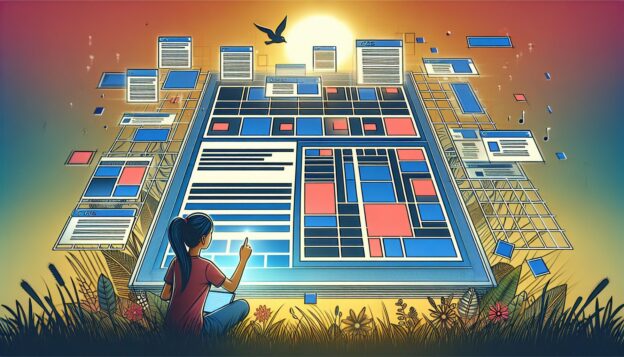
One of the key features of CSS Grid Layout is the ability to create responsive layouts without relying on complex media queries. By using the fr unit, developers can create flexible grids that automatically adjust based on the size of the viewport. Additionally, CSS Grid Layout allows for the creation of grid areas, which are named sections of the grid that can be referenced when placing grid items.
Summary
In conclusion, mastering CSS Grid Layout is essential for modern web development. By understanding the basic concepts and properties of CSS Grid Layout, developers can create complex and responsive layouts with ease. With its flexibility and powerful features, CSS Grid Layout is a valuable tool that every web developer should have in their toolkit. So, start experimenting with CSS Grid Layout in your projects and take your web development skills to the next level.